Migrating a WordPress website can be a complicated and time-consuming process. Whether moving to a new web hosting provider, upgrading your existing services, or just wanting to overhaul your website, ensuring everything goes smoothly is essential. Fortunately, there are plenty of effective strategies for making the transition as smooth and secure as possible. This article will explore the best tips for quickly and safely migrating your WordPress site.
Before you begin the migration process, it’s essential to back up your website. This ensures you have a backup to restore if anything goes wrong during the transition. To ensure everything is recovered, consider completely backing up your entire site before starting the migration process. This will include all files and databases related to your WordPress install.
It can also be helpful to use a plugin like Duplicator or All-in-One Migration to handle data transfer between servers. Such plugins can simplify the process by providing an easy interface for transferring files and databases with minimal effort. Please carefully read through all instructions these plugins provide before migrating, as they can save time and ensure everything goes smoothly.
Finally, update any URLs on your new server after completing the migration process. Any links pointing toward old locations must be updated for visitors to land on the correct pages when navigating your site. You can also redirect traffic from old URLs with 301 redirects so visitors are automatically taken where they should go when entering an outdated URL into their browser bar.
What is WordPress Migration?
WordPress migration is moving a WordPress website from one server to another. This can be done for various reasons, such as transferring an existing site to a new host, upgrading the hosting platform, or changing domain names. It’s essential to ensure your website is backed up on the old server and safely transferred to the new server before implementing changes. Preparing ahead is key to successfully migrating a WordPress site with minimal downtime and disruption.
Before migrating, it’s essential to make sure all backups are up-to-date. This includes files and databases, crucial aspects of any WordPress installation. Databases contain user accounts, posts/pages content, settings, comments, etc., while files have themes and plugins installed on your current installation. Additionally, you should review all currently installed plugins, as some may need reconfiguring once migrated over if they utilize database tables to function correctly on the new server environment. It’s also wise to ensure URLs stored within pages/posts reflect their correct path after the migration, so users don’t get 404 errors when navigating through pages within the live environment post-migration.
How to Migrate WordPress Website Safely?
Migrating a WordPress website can be an intimidating process. It is important to approach the process correctly to ensure data is recovered and to maximize the time and effort needed to complete the move. This article will provide step-by-step instructions on how to migrate a WordPress website from one server to another safely. We will cover how to back up your website data and files, transfer them over properly, and ensure everything works correctly afterward.
How to Migrate a WordPress Website Safely
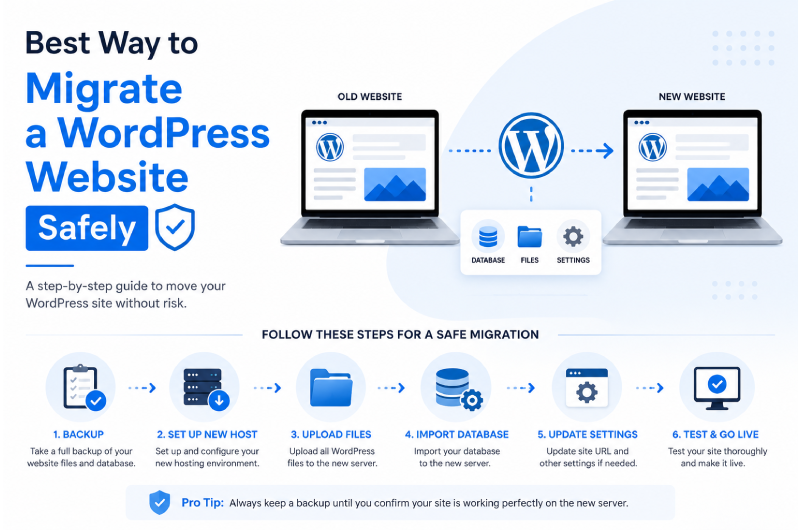
Migrating a WordPress website doesn’t have to be complicated. Whether you’re moving to a new hosting provider, changing your domain, or upgrading your server, following the right process helps prevent data loss, downtime, and broken functionality. Follow these six essential steps for a smooth and secure WordPress migration.
Step 1: Backup Your Website
The first and most important step is creating a complete backup of your WordPress website. Make sure to back up your database, themes, plugins, uploads, and all other website files. Store the backup in a secure location, such as cloud storage or an external drive, so you can quickly restore your website if anything goes wrong during the migration.
Step 2: Choose a Reliable Web Hosting Provider
Select a hosting provider that offers excellent performance, strong security, automatic backups, and reliable customer support. Ensure your new hosting environment meets the latest WordPress requirements, including the recommended PHP version, sufficient storage, SSL support, and adequate server resources.
Step 3: Prepare Your Website for Migration
Before transferring your website, update WordPress core, themes, and plugins to their latest versions. Deactivate unnecessary plugins to reduce the risk of compatibility issues during migration. Cleaning up unused files and optimizing your website before moving can also improve the migration process.
Step 4: Migrate Files and Database
Upload all WordPress files to your new server and import your database using phpMyAdmin or a trusted migration plugin such as Duplicator or All-in-One WP Migration. After importing, verify that your wp-config.php file contains the correct database credentials and that all files have been transferred successfully.
Step 5: Update Website Settings
Once the migration is complete, update your website URL if necessary and review important configuration settings. Check permalink settings, update DNS records if you’re changing domains, configure SSL certificates, and verify that plugins and themes are working correctly on the new server.
Step 6: Test Everything Before Going Live
Before making your migrated website publicly accessible, thoroughly test every important feature. Check page loading speed, menus, forms, images, internal links, contact forms, and plugin functionality. Once everything works correctly, point your domain to the new server and monitor your website for any unexpected issues.
Pro Tip
Never delete your old website immediately after migration. Keep a complete backup and your previous hosting account active until you’ve confirmed that the new website is functioning perfectly and all data has been transferred successfully.
Finally, once everything looks good from an outside perspective, use an automated testing service like Selenium or BrowserStack to check for cross-browser compatibility issues or other technical errors. If everything passes with flying colors, you can push your updates live!
Conclusion: WordPress Migrating Safely
Before beginning any WordPress migration, ensuring a secure backup of your current site is essential. This way, should anything go wrong during the process, you’ll have a version of your website that you can quickly revert to the old one. Furthermore, you will only lose all your content if specific files are recovered or corrupted during the transfer. Additionally, double-check everything once it’s been moved over and ensure all links redirect correctly and any plugins work as expected.
Setting up SSL encryption on your new server or hosting provider before migrating WordPress is also recommended. This will ensure that data delivery from origin to destination is securely encrypted and will help protect against third-party data theft or manipulation. Lastly, depending on the hosting provider used for the new WordPress website, be sure to update any PHP versions necessary for compatibility with current plugins/themes being used to avoid potential compatibility errors after the migration has been completed.